
In today’s digital landscape, WordPress powers over 40% of all websites, making it a prime target for hackers, malware, and brute-force attacks. Securing your site isn’t optional—it’s essential. One of the most powerful and popular tools for WordPress security is Wordfence, a comprehensive plugin that includes a web application firewall (WAF), malware scanner, login protection, and more.
With over 5 million active installations, Wordfence offers robust free features, while premium upgrades provide real-time threat defense and advanced blocking. In this detailed guide, we’ll walk you through installing Wordfence, configuring it for maximum protection, and best practices to keep your site safe in 2026.
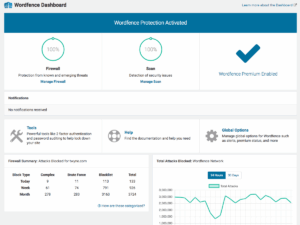
*The Wordfence dashboard provides an overview of your site’s security status.*
Why Choose Wordfence for WordPress Security?
Wordfence stands out with its “defense in depth” approach:
– **Endpoint Firewall**: Blocks malicious traffic before it reaches your site.
– **Malware Scanner**: Checks core files, themes, and plugins against known threats.
– **Login Security**: Includes two-factor authentication (2FA), CAPTCHA, and brute-force protection.
– **Live Traffic View**: Monitors real-time visitor activity, including bots and attacks.
– **Blocking Tools**: Block IPs, countries (premium), or custom patterns.
– **Repair Features**: Automatically fix compromised files.
The free version is highly effective, with premium adding real-time updates and priority support.
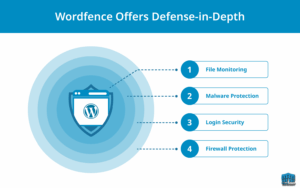
*Wordfence offers layered security features for comprehensive protection.*
## Step 1: Installing Wordfence
Installation is straightforward:
1. Log in to your WordPress dashboard.
2. Navigate to **Plugins > Add New**.
3. Search for “Wordfence Security”.
4. Click **Install Now** on the official plugin by Wordfence.
5. Once installed, click **Activate**.
Upon activation, Wordfence adds a new menu item in your admin sidebar. You’ll be prompted to enter an email for alerts and get a free API key (license).
If you prefer manual installation:
– Download the ZIP from wordpress.org/plugins/wordfence/.
– Go to **Plugins > Add New > Upload Plugin**.
– Upload and activate.
## Step 2: Initial Setup and Firewall Optimization
After activation:
1. Go to **Wordfence > Dashboard**.
2. Enter your email for security alerts.
3. Agree to terms and get your free license key (automatically installed in most cases).
Optimize the Firewall for Extended Protection
The firewall defaults to “Basic Protection” (runs as a plugin). For stronger security, enable **Extended Protection** so it loads before WordPress.
1. Go to **Wordfence > Firewall**.
2. Click **Manage Firewall** or **Optimize Firewall**.
3. Select **Optimize the Wordfence Firewall**.
4. Wordfence tests your server config (e.g., Apache, Nginx).
5. Download a backup of your `.htaccess` file when prompted.
6. Click **Continue**—Wordfence updates server files automatically.
If auto-optimization fails (e.g., on OpenLiteSpeed), manual configuration instructions will appear—add the provided code to your server’s config.
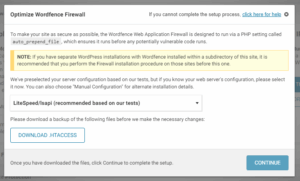
*The firewall setup process ensures optimal protection.*
Avoid leaving the firewall in “Learning Mode” longer than necessary (it learns normal traffic for 7 days by default). Switch to “Enabled and Protecting” once confident no legitimate actions are blocked.
## Step 3: Running Your First Scan
Scans detect malware, backdoors, and file changes.
1. Go to **Wordfence > Scan**.
2. Click **Start New Scan**.
The scan checks:
– Known malware signatures.
– File changes vs. WordPress repository.
– Suspicious code.
Results appear on the scan page—review and repair issues.
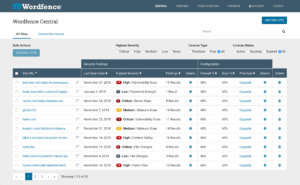
*Typical scan results highlighting issues and recommendations.*
Schedule scans in **All Options > Scan Schedule**.
## Step 4: Configuring Key Options for Maximum Security
Go to **Wordfence > All Options** for detailed settings. Defaults are good, but tweak for better protection.
### General Options
– **Alerts**: Enable critical alerts (e.g., malware found, admin login). Disable noisy ones like every admin sign-in.
– **IP Detection**: Use “PHP’s built-in REMOTE_ADDR” unless behind a proxy (then test options).
### Firewall Options
– **Web Application Firewall Status**: Enabled and Protecting.
– **Rate Limiting**:
– Throttle crawlers.
– Limit failed logins (e.g., lockout after 5 attempts).
– **Brute Force Protection**: Enable; set lockouts for login/password reset attempts.
### Login Security
– Enable **Two-Factor Authentication** (highly recommended).
– Add CAPTCHA on login/registration.
– Block compromised passwords.
### Scan Options
– Scan core, themes, and plugins against repository.
– High sensitivity for thorough checks.
– Exclude large files if scans time out.
### Blocking
– Enable country blocking (premium).
– Custom blocks for known bad IPs.
### Live Traffic
– View real-time activity; filter to “Security Only” to reduce noise.
### Performance Tips
– Exclude unnecessary files from scans.
– Use with caching plugins (Wordfence is compatible with most).
## Advanced Best Practices in 2026
– **Combine with Other Measures**: Use strong passwords, limit login attempts, keep WordPress/plugins updated, and consider Cloudflare for CDN-level protection.
– **Monitor Regularly**: Check dashboard and emails for alerts.
– **Premium Upgrade?**: For high-traffic or e-commerce sites, consider premium for real-time rules, country blocking, and faster support.
– **If Locked Out**: Use recovery mode or delete Wordfence files via FTP to regain access.
– **Multi-Site Support**: Fully compatible—scan all sites at once.
## Troubleshooting Common Issues
– **False Positives**: Whitelist legitimate actions in firewall rules.
– **Performance Impact**: Limit scan frequency; exclude media/uploads.
– **Conflicts**: Disable temporarily to test other plugins.
Conclusion: Secure Your Site Today
Setting up Wordfence takes minutes but provides ongoing protection against evolving threats. Start with the free version—it’s powerful enough for most sites. Regularly review settings and scans to stay ahead of hackers.
Your WordPress site deserves top-tier security. Install Wordfence now and sleep easier knowing it’s guarded 24/7.
*Always check the official Wordfence documentation for the latest changes.*